


Content:
The Nintendo Wii U doesn’t include a built-in Ethernet port, so connecting it to a network normally means relying on Wi-Fi. While this works perfectly well in most situations, a wired connection can offer better stability and potentially faster download speeds.
Nintendo did release an official USB LAN adapter, but these can be pretty expensive – you can often pick up a Wii U console for less than the price of the adapter!
There is, however, a cheaper alternative. The official LAN adapter uses an ASIX AX88772 chipset – a chipset also used by the Apple A1277 USB Ethernet adapter. It’s possible to flash the Apple adapter with generic firmware to make it compatible with the Wii U.
It’s been possible to do this for over a year now, but was a rather involved process which only worked on Linux. Thanks to a new web tool, it’s now possible to flash the Apple adapter using a web browser, making it much more accessible.
I managed to pick one up second-hand for just £2.50, plus postage, so decided to test out the new web flashing tool and see how well the Wii U performs using a wired network connection.
Video Guide
If you’d prefer to follow the process in video format, I’ve also covered the conversion on our YouTube channel. This includes flashing the firmware, connecting the adapter to the Wii U and testing the resulting connection. I also tested out the older flashing method, to show how much easier the new web tool is in comparison.
Flashing the Firmware
The web-based flashing tool allows us to communicate with the adapter directly from a compatible browser, without having to install or compile any additional software. You can find the tool using the link below.

Wii/Wii U A1277 Ethernet EEPROM Patcher
Flash an Apple A1277 with generic firmware, making it compatible with the Wii U
Connect the Apple A1277 to your computer and open the flashing tool. The browser will ask for permission to access a USB device. Select the Apple Ethernet adapter from the list and allow access.
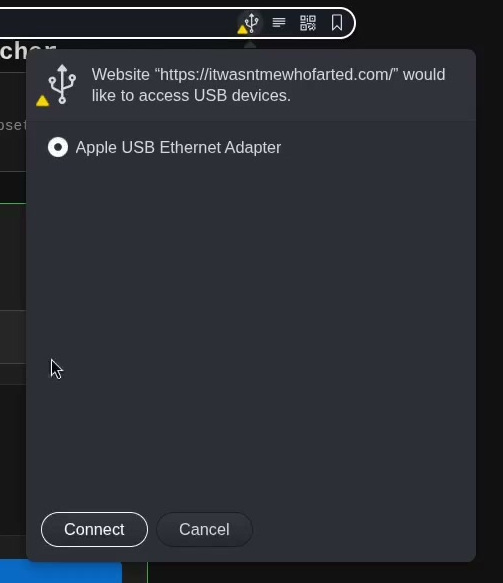
Once the browser has been granted access, the website should detect the adapter.

If the device is not recognised, you may need to configure your PC to recognise it.
I used Linux to flash my adapter, and had to add additional udev rules for my browser to recognise the device. This was done using the following commands.
echo 'SUBSYSTEM=="usb", ATTR{idVendor}=="05ac", ATTR{idProduct}=="1402", MODE="0666"
SUBSYSTEM=="usb", ATTR{idVendor}=="0b95", ATTR{idProduct}=="7720", MODE="0666"' | sudo tee /etc/udev/rules.d/50-a1277-webusb.rules
sudo udevadm control --reload-rules
sudo udevadm trigger
For Windows, you can use a tool called Zadig. More details about this can be found on the flasher page.
As with any website requesting access to USB hardware, it’s worth being cautious about granting permission. Only use a flashing tool from a source you trust. The tool is written in JavaScript and is contained within a single HTML file, so it’s easy to check out the page source if you wanted to do so.
Once the adapter has been detected, we can start the flashing process.
Flashing the Adapter
To start the flashing process, click on the ‘Flash to generic AX88772’ button.
Before making any changes, the flashing tool downloads a copy of the adapter’s existing firmware. Keep a copy of this, in case you ever want to revert the adapter to the original firmware.
The firmware will then be flashed on to the adapter. This is a quick process – the firmware is only 512 bytes after all!
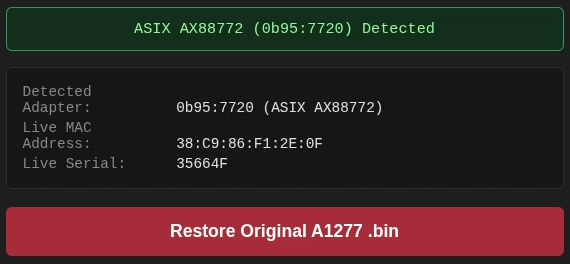
Once complete, unplug the adapter, and plug it back in to the PC. It should now be recognised as an ASIX 88772 adapter. You may have to give your browser permission once again to access the device, as it is now a different hardware device as far as the browser has been concerned.
The button to flash the firmware should now have changed to allow you to restore the original firmware. If you ever want to reverse the modification, provide the backup file created earlier and it will be flashed back on to the adapter.
Connecting the Adapter to the Wii U
With the firmware conversion complete, it’s time to try the adapter with the Wii U.
Connect the Apple adapter to one of the console’s USB ports and connect an Ethernet cable between the adapter and your router.
Next, open the Wii U’s internet connection settings and configure a new connection. Select the wired connection option and follow the on-screen instructions to configure the network.
Once configured, run the connection test to check that everything is working. I’d suggest saving this connection as the default, to ensure it is used first if it is available.
Comparing Wi-Fi and Ethernet Speeds
With the adapter working, I wanted to see whether using a wired connection would make much difference to download speeds.
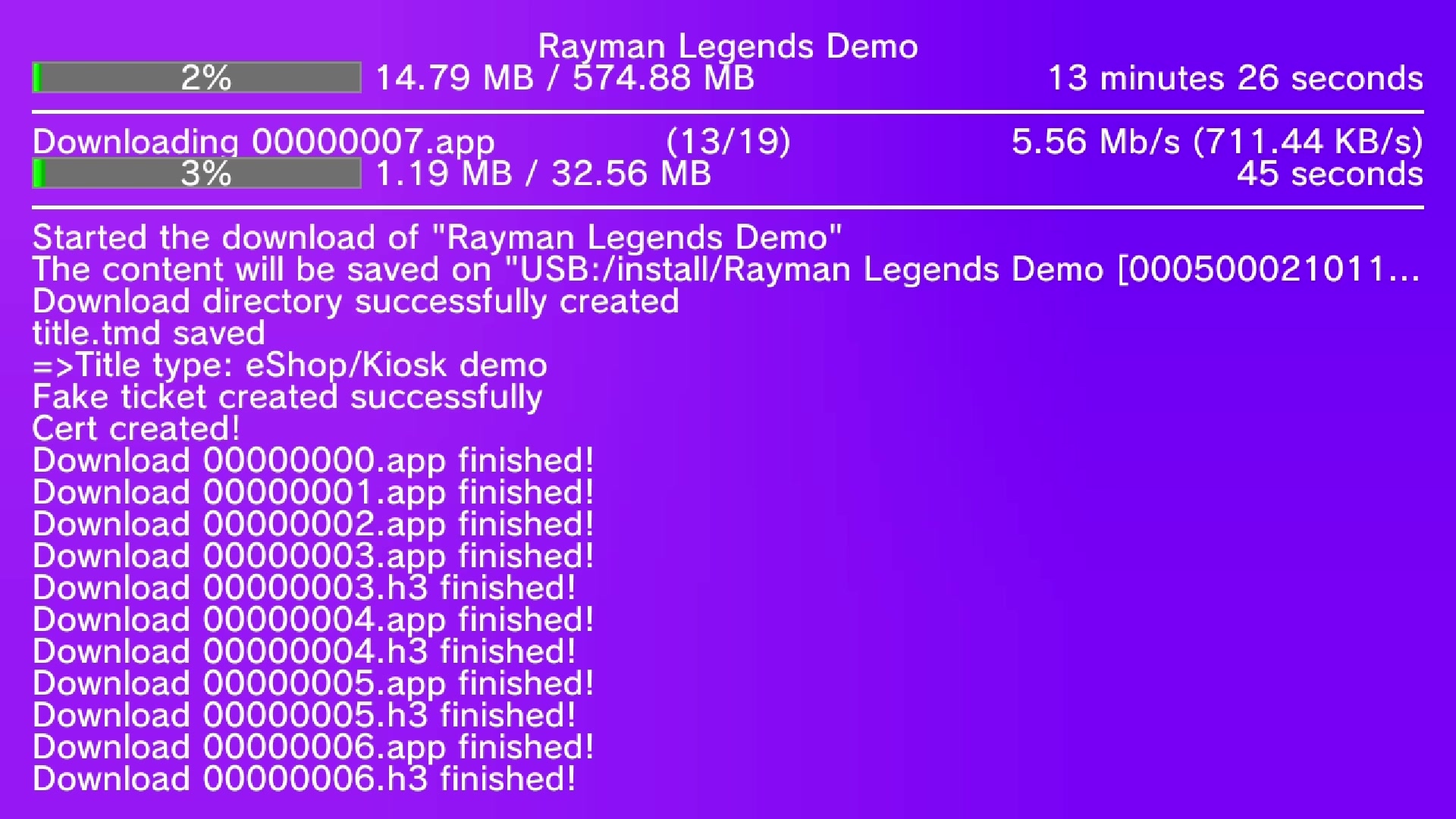
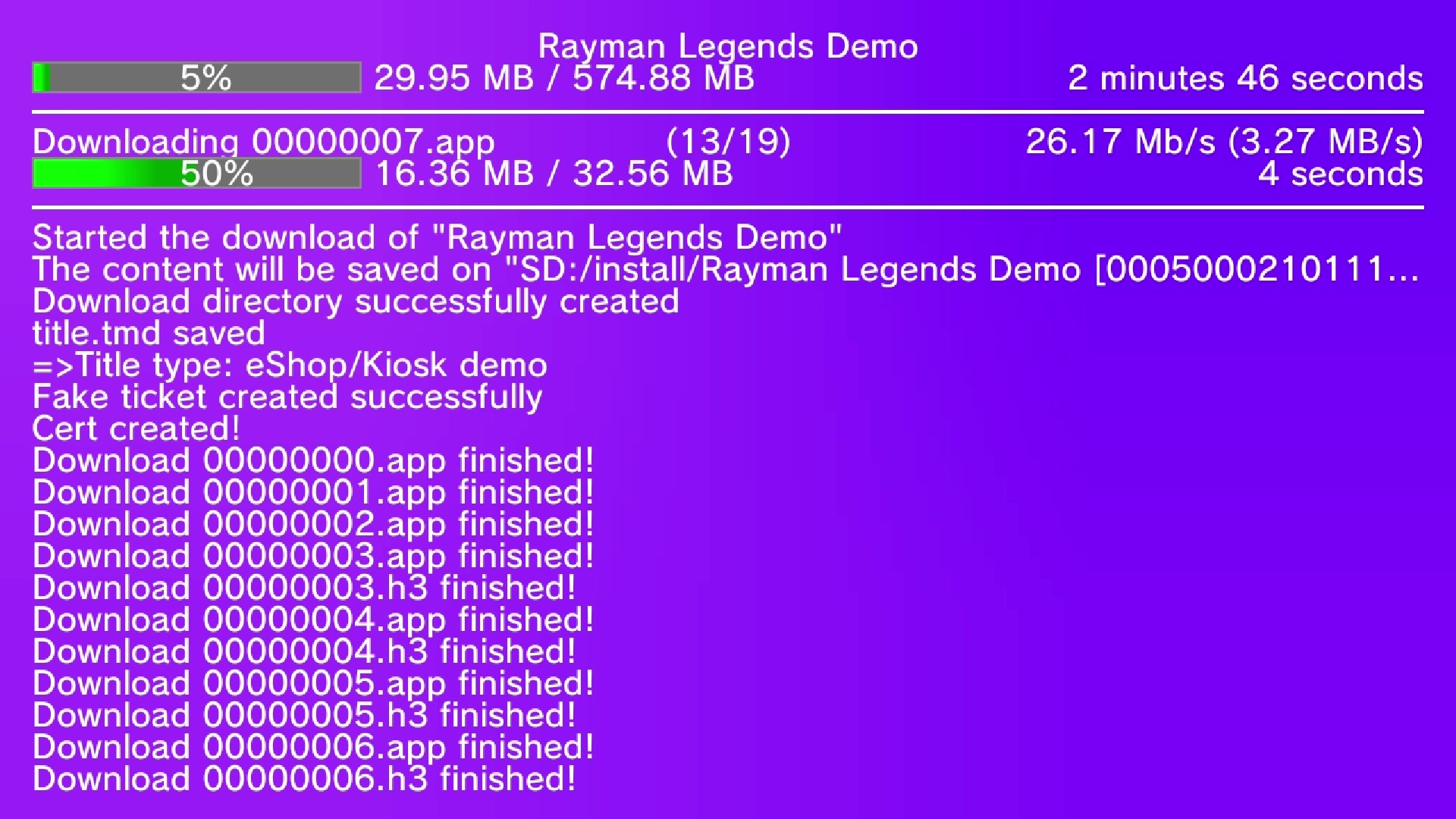
To test this, I downloaded the Rayman Legends demo using both the Wii U’s built-in Wi-Fi connection and the modified Apple Ethernet adapter. This was not a particularly scientific test, but I figured it would give a rough idea of the speed difference between the two.
Below is a screenshot of the download speed using Wi-Fi.
And this is using the Ethernet adapter.
The results were:
| Connection | Download speed |
|---|---|
| Wi-Fi | Up to 700 KB/s |
| Ethernet | Up to 3.2 MB/s |
The wired connection managed around 3.2 MB/s, compared with approximately 700 KB/s over Wi-Fi. That’s roughly four and a half times faster in this particular test.
Obviously, these results will vary depending on the quality of your wireless connection, router and broadband connection. If you already have a strong Wi-Fi signal, the difference may not be quite so significant.
In addition, the speed of the server itself can play a big role in the download speed. The Apple adapter theoretically supports up to 12.5MB/s (100Mbit/s). We were still nowhere near this limit, suggesting the server itself is now the limiting factor.
However, it does show that using a wired connection can make a considerable difference under the right conditions.
The Older Linux-Based Method
The browser-based flashing tool makes the conversion relatively straightforward, but there is also an older method using Linux.
This involves downloading the required tools from GitHub, compiling them and using command-line utilities to read and modify the adapter’s firmware.
The process involves identifying the USB device, extracting its original firmware and retrieving information such as its MAC address and serial number.
These details are then combined with the generic AX88772 firmware before the modified firmware is written back to the adapter.
Although this method works, it’s considerably more involved than using the browser-based tool.
I demonstrate the process in the video above for anyone interested in how the original method works, but for most people the browser-based approach is much simpler. I may describe this in more detail here at some point.
Conclusion
The Apple A1277 USB Ethernet adapter provides an inexpensive way of adding wired networking to the Nintendo Wii U.
Rather than paying a premium for the official Nintendo adapter, I was able to pick up a second-hand Apple adapter for just £2.50 and convert it using generic AX88772 firmware.
The browser-based flashing tool makes the process much easier than the older Linux method, and the original Apple firmware can be restored if required, provided you’ve kept the backup.
The download speed comparison was also interesting, with the wired connection achieving around four and a half times the speed of Wi-Fi in my test.
It’s a useful way of repurposing an inexpensive piece of hardware, particularly if you can find one of these adapters cheaply.


