


Content:
There are many settings to check when configuring your email server, if you want to ensure your emails reach the server on the other end.
While some, such as setting up DMARC/DKIM/SPF are well known, there are some which receive much less attention.
One of these is setting your hostname correctly. This value should be set to match your server’s reverse DNS value.
Some email servers will reject messages that don’t have a hostname matching the reverse DNS value, so it’s important to set it up correctly.
What is a Reverse DNS?
To explain this one, it’s important to understand what a reverse DNS, or rDNS, is.
While your ISP will provide your network with an IP address, the ISP will also use an rDNS name to refer to you. It is likely that this rDNS is tied to your customer account with the ISP.
An example of an rDNS is as follows:
customer2178581.web.isp.comNow, this is a completely made up rDNS, but is in a similar vein to an actual rDNS record. You’ll notice it looks similar to a web address – hence why it’s a ‘reverse’ DNS. We usually use DNS records the other way around – we provide a web address, and DNS gives us the IP.
How to Set Your rDNS
The reason for this error is that the hostname used by your MTA doesn’t match the rDNS name given by your ISP. It’s unlikely your ISP will let you choose a fixed rDNS name, so you’ll need to find the correct value to use.
If you’re using Mail Tester, the result will tell you exactly what it’s expecting.
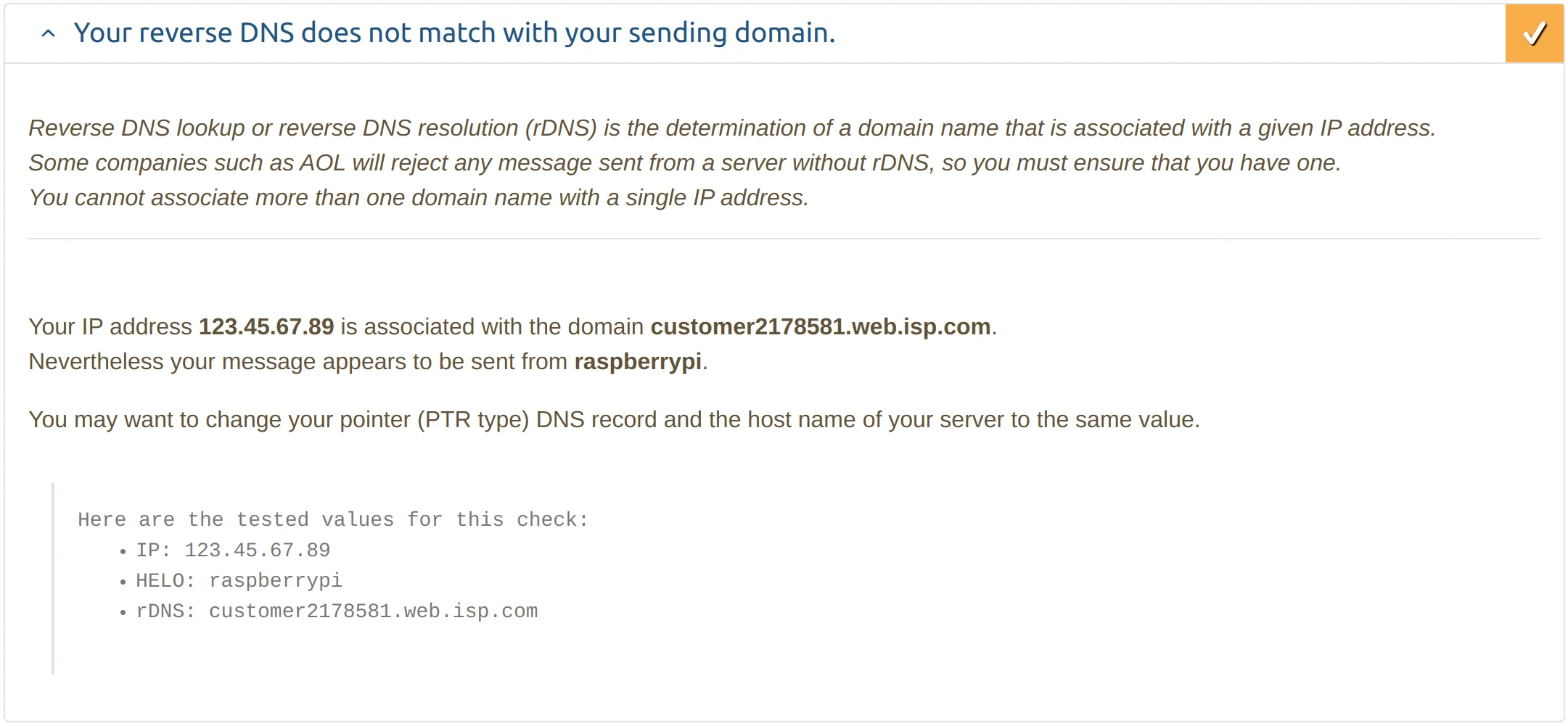
In the bottom section of the result, you can see the rDNS value set by the ISP. Our HELO, however, has a different value. If you’re unsure how to use the Mail Tester site, check out our article.
If you don’t use Mail Tester, you can use the website whatismyipaddress.com to find the required value. On this site, click on ‘Show Complete IP Details’, to bring up extra info for your IP address.
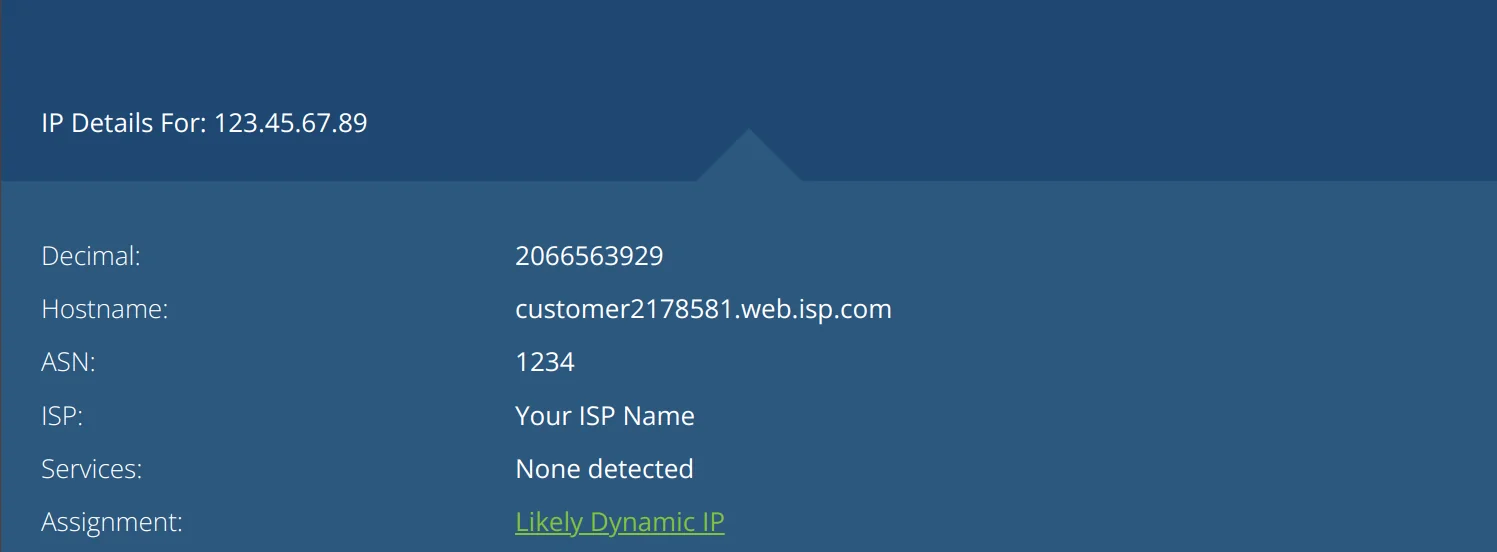
Here, you’ll see an entry called ‘Hostname’. This the rDNS value for your IP address, and the one you’ll need to configure your MTA to use.
Testing the rDNS Value
If you want to give this value a test, you can try sending a new email to Mail Tester through telnet.
Rather than using the command
ehlo localhostyou’ll instead need to use ehlo, followed by the rDNS value. In this example, the command would instead be
ehlo customer2178581.web.isp.comMail Tester should show a pass for this check on the new message.
The rest of the telnet config will be exactly the same – it’s only the ehlo value that needs to change.
Configuring Postfix
If you’re using an MTA other than Postfix, you’ll need to find instructions showing how to change the hostname value for your MTA. It should be somewhere prominent, as it’s a value that’s intended to be changed.
For Postfix, open the main config file (usually found at /etc/postfix/main.cf). Find the line starting myhostname.
myhostname = /etc/mailnameChange the value to match your rDNS.
myhostname = customer2178581.web.isp.comSave the file, and restart Postfix.
The myhostname value is used by Postfix in the helo command. With the value changed, the helo sent by Postfix will have our rDNS value.
Keeping the rDNS Up To Date
It’s worth remembering that, when your IP address changes, your rDNS value is likely to change as well.
If you’re running your mail server from a location with a dynamic IP address, you’ll already be familiar with the changes required to update domain DNS records when your IP address changes.
Your rDNS value is another thing you’ll want to check going forward, to ensure your configuration remains valid.